

Convert GSTR-1 JSON to Excel (and Back) Without Errors
The GST portal speaks JSON and your accountant speaks Excel. Here is how to move GSTR-1 data between the two in both directions, and the handful of formatting errors that cause almost every failed upload.

On this page
Key takeaways
- A GSTR-1 JSON is a nested file with one array per return table; the offline tool converts it to and from Excel section by section.
- Excel silently damages GST data: it strips leading zeros from state codes, turns long invoice numbers into scientific notation and reformats dates.
- The offline tool's error report is itself a JSON; open it in the tool to see which rows failed and why, then fix the source rows and regenerate.
- If invoices already live in billing software that prepares GSTR-1, exporting to Excel and back adds risk without adding information.
Almost every GSTR-1 upload failure comes from the same short list of formatting problems, and almost all of them are introduced when data passes through Excel. The JSON that the GST portal accepts is strict about dates, state codes, GSTIN case and invoice number length. Excel is helpful in ways that break all four.
This guide covers both directions. JSON to Excel, so you or your CA can review a return or a downloaded filed return in a spreadsheet. And Excel to JSON, so data prepared in a spreadsheet can be uploaded through the offline tool without the "invalid data format" message. It ends with the case where you should not convert at all.
For the return itself, section by section, see the GSTR-1 filing guide. This post is only about moving the data.
What a GSTR-1 JSON contains
A GSTR-1 JSON is one object with a header and one array per return table. Knowing the shape helps you read an error message, because the message names the key that failed.
- Header:
gstin(the filer),fp(filing period as MMYYYY, so August 2026 is082026),versionand a hash for filed returns. b2b: one entry per customer GSTIN (ctin), each with aninvarray. Every invoice carriesinum(number),idt(date as DD-MM-YYYY),val(invoice value),pos(place of supply as a two-digit state code),rchrg(reverse charge Y or N),inv_typ(R for regular, and other codes for SEZ and deemed exports), and anitmsarray with one line per rate.b2cl: large inter-state B2C invoices, grouped by place of supply.b2cs: small B2C supplies, consolidated by place of supply and rate rather than by invoice.cdnrandcdnur: credit and debit notes to registered and unregistered recipients.exp: exports, with shipping bill details.hsn: the Table 12 summary, now with B2B and B2C sections.doc_issue: Table 13, the document series list.at,txpd: advances received and adjusted.
Each line inside itms has an itm_det block with rt (rate), txval (taxable value), iamt, camt, samt and csamt for IGST, CGST, SGST and cess. A row with rt of 12 or 28 for a supply dated on or after 22 September 2025 fails, because the GST 2.0 schedule has only 5, 18 and 40 percent plus nil. The new GST rates guide has the current mapping.
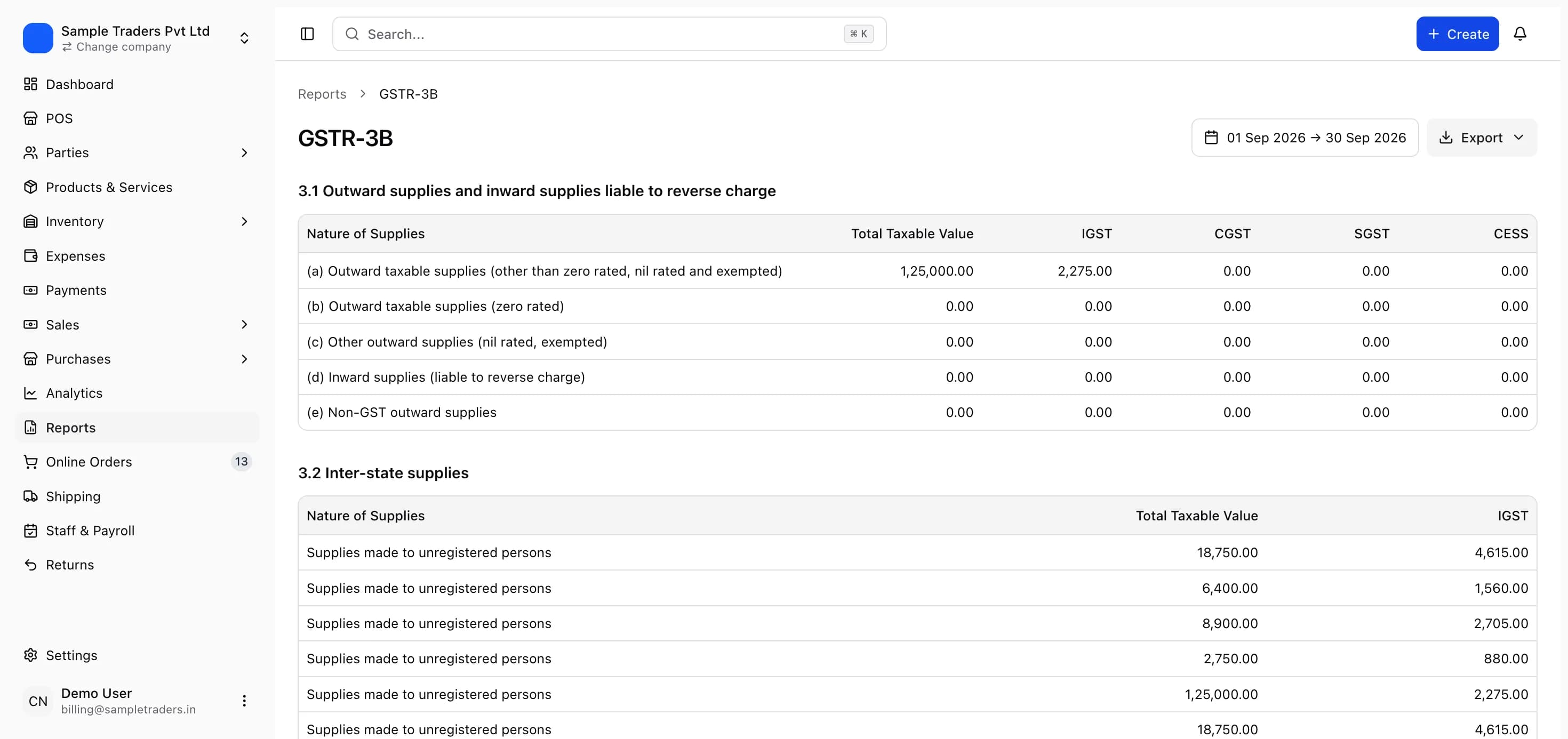
The JSON is the return, the Excel is a view
The portal never reads your spreadsheet. Whatever you fix in Excel has to survive the trip back into JSON, and whatever you read in Excel is only as accurate as the import. Keep this in mind when deciding which file is the source of truth.
JSON to Excel, route 1: the offline tool
The GST portal's GSTR-1 offline tool is the official converter and handles every table correctly.
- Download the latest version of the GSTR-1 offline tool from the Downloads section of the GST portal and install it. Older versions reject newer JSON, so check the version before every filing season.
- On the portal, go to the GSTR-1 for the period you want, and download the JSON. For a filed return this is the filed data; for an unfiled period it is whatever is saved.
- Open the tool, choose the option to open a downloaded GSTR-1 JSON or error file, and select the file. The tool asks for the GSTIN and period and checks they match the file.
- The tool now shows each section with its records. Use the view summary and section screens to review, and the export option in each section to write the rows to Excel or CSV.
- Save each exported sheet with the period and table in the file name, because the offline tool's export names are generic and easy to confuse across months.
This route takes a few minutes and is the only one that handles every table, including HSN and document series, in the exact layout the portal uses.
JSON to Excel, route 2: Power Query for a quick review
If you only need to read the invoices, Excel can load the JSON directly without the offline tool.
- In Excel, go to Data, Get Data, From File, From JSON, and pick the file.
- Power Query opens the top-level record. Convert it to a table, then expand the
b2bcolumn, then theinvcolumn, thenitms, thenitm_det. - Before loading, set the data type of
inum,ctinandposto Text, andidtto Text rather than Date, so Excel does not reformat them. - Load to a sheet. You now have one row per invoice line with GSTIN, number, date, place of supply, rate and amounts.
The limitation is that each table needs its own query, and Power Query does not know GST rules. It is a review tool, not a preparation tool. Do not send a Power Query sheet back through the offline tool without re-typing the columns.
Excel to JSON: filling the offline tool templates
The offline tool ships with Excel and CSV templates, one sheet per table. Filling them correctly is where most of the work is.
Template rules that the tool checks
- Recipient GSTIN in upper case, 15 characters, valid check digit
- Invoice number up to 16 characters, only letters, numbers, hyphen and slash
- Invoice date as DD-MM-YYYY, within the return period or an earlier period being amended
- Place of supply as a two-digit code with the leading zero, for example 07 for Delhi
- Rate as a plain number: 5, 18 or 40, or 0 for nil-rated
- Taxable value and tax amounts as numbers without commas or currency symbols
- Reverse charge column as Y or N
- One row per rate per invoice, not one row per product
Steps:
- Export invoices from your billing system, or build the sheet manually, with one row per invoice per rate.
- Format the GSTIN, invoice number, date and place of supply columns as Text before you paste data in. If you paste first and format later, Excel has already converted the values.
- Paste into the matching template sheet. Keep the header row and column order exactly as the template has them; the tool matches by column position as well as name in some versions.
- Open the offline tool, choose the option to import an Excel or CSV file, pick the template, and select the section it belongs to.
- Read the import summary. It reports how many rows were read, how many succeeded and how many failed, with a reason per failed row.
- Fix failed rows in the sheet, not in the tool, and re-import. Editing in the tool works once and is lost the next time you regenerate from the sheet.
- Once every section imports cleanly, choose Generate JSON, save the file, and upload it on the portal under GSTR-1 for the same period.
- After upload, click Generate Summary on the portal and compare the table totals with your sheet before filing.
For invoice number format and the yearly reset that trips the 16-character check, the GST invoice number format rules post has the detail.
The errors that break the upload
| Error you see | What Excel or the tool did | Fix |
|---|---|---|
| Invalid GSTIN of recipient | Lower case letters, trailing space, or a wrong check digit | Trim, upper case, validate on the portal search |
| Invalid date format | Excel stored the date as a serial or as MM/DD/YYYY | Store as text in DD-MM-YYYY |
| Invalid place of supply | Leading zero dropped, 7 instead of 07 | Format column as text before paste |
| Invoice number exceeds 16 characters | A long alphanumeric number or a date embedded in the number | Shorten the series, keep Rule 46 format |
| Duplicate invoice number | Same number used twice in the financial year | Fix in the source, issue a fresh number if needed |
| Invalid data format | JSON from an older tool version, or a hand-edited file | Update the tool, regenerate from Excel |
| Rate not valid | 12 or 28 percent row after 22 September 2025 | Correct the product rate to 5, 18 or 40 |
| Filing period mismatch | Wrong `fp`, or logged into a different GSTIN | Regenerate for the right period and GSTIN |
Three of these deserve a closer look because they are silent until upload.
Scientific notation on invoice numbers. A number like 2627000123456789 in a General-formatted cell becomes 2.627E+15, and when saved as CSV that is what the tool reads. Even if the display looks right, check a cell in the formula bar.
Leading zeros on state codes. Delhi (07), Gujarat (24) and Maharashtra (27) show up in the same column, and Excel treats 07 as 7 unless the column is text. Every Delhi invoice then fails place of supply validation.
Dates. Excel stores a date as a serial number and displays it by locale. A machine set to US locale exports 08/03/2026 where the tool expects 03-08-2026. Store dates as text in the template and the problem disappears.
Reading the error report JSON
When part of an upload fails, the portal generates an error report. Download it from the same GSTR-1 upload history screen, and open it in the offline tool using the open error file option. The tool lists only the rejected records with an error code and description per row.
Work through it like this:
- Sort by error code. The same code on fifty rows is one fix, usually a format applied to a whole column.
- Correct those rows in your source sheet or billing software, not in the tool.
- Re-import only the corrected section, regenerate the JSON, and upload. The portal merges the corrected records with the ones that already succeeded.
- Run Generate Summary again and compare totals.
If the error report is empty but the summary totals still look wrong, the problem is in a table that imported successfully with wrong values, which is the harder case. The HSN summary error guide covers the Table 12 side of that.
Do not edit invoices in the tool to make the upload pass
An invoice corrected in the offline tool but not in your books produces a return that disagrees with the invoice the customer holds. When they reconcile in GSTR-2B and IMS, the difference comes back to you as a rejection or a query. Fix the source first, every time.
Amending after filing
If you find the mistake after GSTR-1 is filed, you have two windows. GSTR-1A opens after GSTR-1 is filed and stays open until GSTR-3B for the same period is filed; corrections there flow into the same period's GSTR-3B. After that, the correction is an amendment in the next period's GSTR-1, in the amendment tables (9A for invoices, 9C for credit and debit notes). The JSON keys for amendments carry the original number and date alongside the revised values, and the offline tool has separate template sheets for them.
| When you find the error | Where the correction goes | JSON section |
|---|---|---|
| Before GSTR-1 is filed | Edit the record and re-upload | Same table (b2b, b2cl, cdnr) |
| After GSTR-1, before GSTR-3B | GSTR-1A for the same period | GSTR-1A upload |
| After GSTR-3B for the period | Next period's GSTR-1 amendment tables | b2ba, b2cla, cdnra with original number and date |
| Credit note past 30 November of the following year | Cannot reduce tax; adjust commercially | Not reportable |
Your customer sees the corrected invoice in their GSTR-2B for the period in which you amend it, and can accept or reject it in IMS. That is why an amended invoice needs the original number preserved exactly; a changed number looks like a new invoice on their side. The GSTR-2B reconciliation guide explains the recipient's view.
When to skip the conversion entirely
If your invoices are already in billing software that prepares GSTR-1 from them, the Excel round trip only adds places for data to be damaged. The software already has the GSTIN, number, date, place of supply, rate and amounts in typed fields, and it can produce the JSON or the return tables without passing through a spreadsheet.
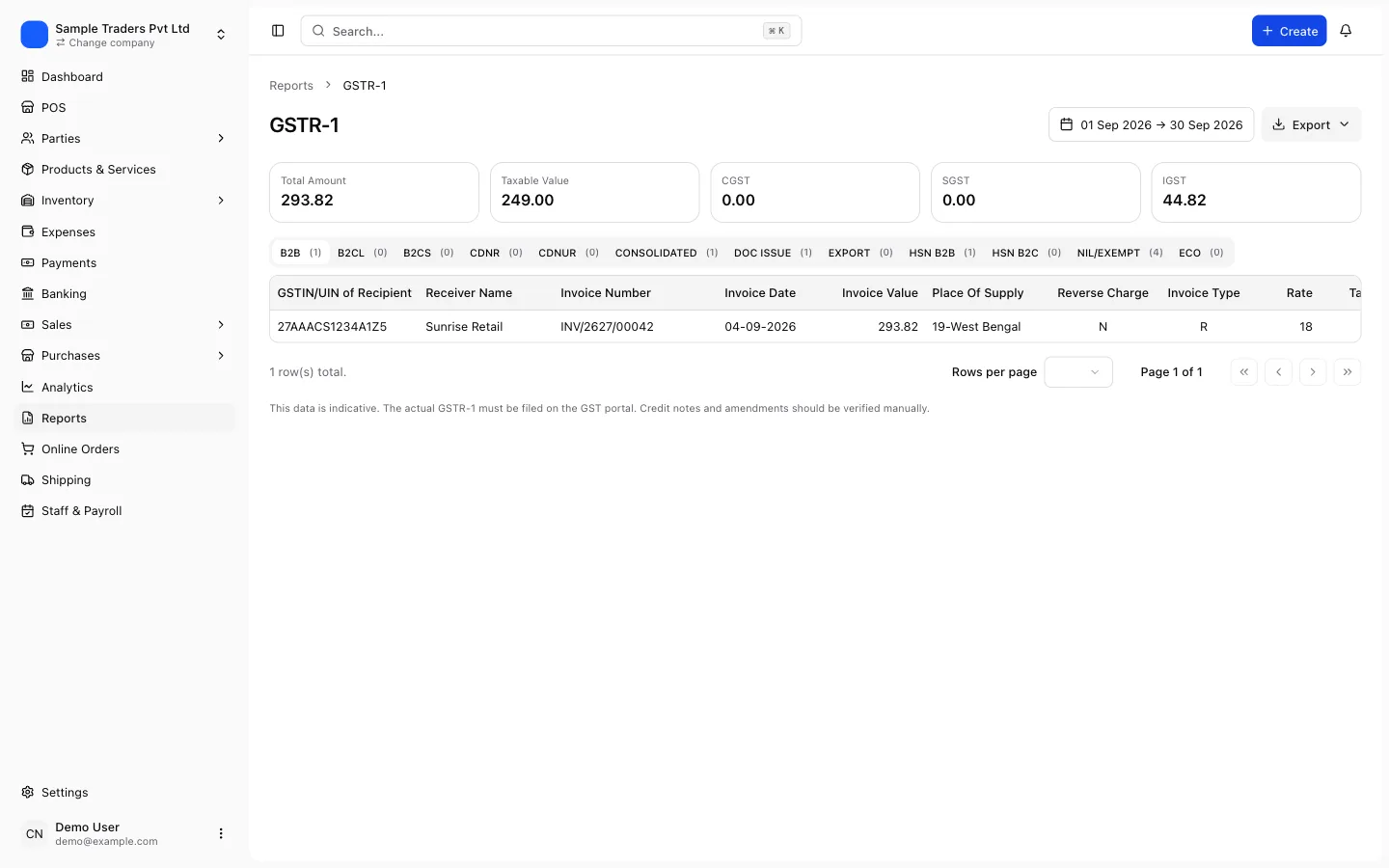
The Excel route makes sense in three situations:
- Your invoices are still made in Excel or Word and there is no structured source. In that case the template is your structured source, and the checklist above is your validation.
- Your CA wants to review the return in a spreadsheet before filing. Use route 1 or route 2 to export, review, and then fix in the source.
- You are reconciling a filed period against your books, and the portal's downloaded JSON is the authoritative record of what was filed.
If you are in the first situation and the monthly cleanup is getting expensive, Excel billing vs GST software sets out what changes when invoices are created in a system that knows the rules.
Before you click Generate JSON
- Latest offline tool version installed
- GSTIN and period in the tool match the portal login and return period
- Every section imported with zero failed rows
- Invoice numbers checked in the formula bar, not just on screen
- State codes still carry their leading zero
- No rate of 12 or 28 for supplies after 22 September 2025
- Credit notes for the period included in cdnr or cdnur
- HSN summary and document series sections filled
A note on the 11th
The GSTR-1 due date is the 11th of the following month for monthly filers, and the 13th after the quarter for QRMP taxpayers with turnover up to Rs 5 crore. A failed JSON upload on the evening of the 11th is the usual way a business ends up paying the Rs 50 per day late fee (Rs 20 per day for a nil return) on a return that was actually ready.
Convert and upload on the 8th or 9th, run Generate Summary, and leave the last two days for the error report. If a section still fails, file the sections that are clean, and correct the rest through GSTR-1A before GSTR-3B on the 20th. The late fee calculator shows what a delay costs at your turnover.
myBillPlease prepares GSTR-1 and GSTR-3B from the invoices it issued, so the JSON step, the templates and the leading zero problem do not arise for those invoices. The free plan covers 100 invoices a month for one user with no card required.
Frequently asked questions
- How do I convert a GSTR-1 JSON file to Excel?
- Open the GST portal's GSTR-1 offline tool, choose the option to open a downloaded GSTR-1 JSON or error file, import it, and use the tool's view and export options to get the data into Excel section by section.
- How do I convert Excel to GSTR-1 JSON?
- Fill the Excel or CSV templates that ship with the offline tool, one sheet per table (b2b, b2cl, b2cs, cdnr, hsn and so on), import them into the tool, run the validation, and click Generate JSON.
- Why does the portal say the JSON has an invalid data format?
- Usually the JSON was generated with an older version of the offline tool than the portal currently accepts. Download the latest tool, re-import the Excel, and regenerate.
- Why do my invoice numbers change after opening the CSV in Excel?
- Excel treats a cell like 2627000123456789 as a number and shows it in scientific notation, and it drops leading zeros from values like 0001 or state code 07.
- Can I edit the GSTR-1 JSON directly in a text editor?
- You can, but a single stray comma or quote makes the file unreadable and the portal gives a generic error rather than a line number.
- What is the error report JSON the portal gives after a failed upload?
- When part of an upload fails, the portal produces an error file that contains only the rejected records and an error code for each.
- Does the JSON need to include every table even if it is empty?
- No. Include only the tables that have data for the period. An empty array for a table is accepted, but a table filled with placeholder rows, such as zero-value invoices, is not.